Skip to content

FMRTE 26 for Steam Deck

FMRTE 26 for Steam Deck

FMRTE for Steam Deck/Linux

This version of FMRTE was designed to work with FM 26.3.2

Instructions

1. Switch to Desktop Mode (Steam deck)

  • Press and hold the Power button until a menu appears.
  • Select Switch to Desktop.

2. Download the AppImage

  • Open a web browser (such as Firefox or Chrome).
  • Download FMRTE
  • Save it to a location you can easily find, such as the Downloads folder or Desktop.

3. Make the AppImage Executable

  • Open the Dolphin file manager (find this on the taskbar or in the application launcher).
  • Locate the downloaded .AppImage file.
  • Right-click the file, select Properties, then go to the Permissions tab.
  • Check the box next to Is executable (or Allow executing file as program).

4. Run the AppImage

  • Double-click the .AppImage file to launch the application.
  • If prompted with any security warnings, select Yes or Trust to proceed with running the app.

Changelog

Build 42

Added

  • Expanded player competition registration types, including AFC, continental, domestic cup and women’s competition registrations
  • Stadium pitch dimensions, environment, ownership and facility flags
  • Club youth importance, ownership type, chairperson title and transfer embargo age restriction

Fixed

  • Player Information now shows the player’s actual Days in Country value

Build 40

Added

  • Support for FM 26.3.2 game update

Build 39

Added

  • Support for FM 26.3.1 game update

Build 38

Fixed

  • Some issues loading the game

Build 37

Added

  • Support for FM 26.3.0 Hotfix game update

Build 36

Added

  • Support for FM 26.3.0 game update

Build 35

Added

  • Support for FM 26.2.0 Hotfix game update

Build 34

Added

  • Support for FM 26.2.0 game update

Build 33

Added

  • Support for FM 26.1.3 Hotfix game update

Build 32

Added

  • Support for FM 26.1.3 game update

Fixed

  • Some minor issues

Build 31

Added

  • Support for NG Regens facepacks

Fixed

  • An error when installing facepacks (e.g., “The given key ‘SAMed’ was not present in the dictionary”).

Build 29

Added

  • Support for FM 26.1.2 game update

Build 28

Added

  • Support for Steam Deck

How to Enable Experimental features

  • Go to FMRTE Settings
  • Check the ‘Enable Experimental Features’ checkbox
  • Press the Save button

Known Issues - Features not working yet

  • Add/remove Nations treated as EU / non foreign
  • Editing Human Teams Advised Staff is disabled in Console Edition

Supported Versions Steam

  • Football Manager 2026 - 26.3.2 (2329565)
  • Football Manager 2026 - 26.3.1 (2314564)
  • Football Manager 2026 - 26.3.0 (2283239, 2286575)
  • Football Manager 2026 - 26.2.0 (2275071, 2276383)
  • Football Manager 2026 - 26.1.3 (2265543, 2266940)
  • Football Manager 2026 - 26.1.2 (2255777)
  • Football Manager 2026 - 26.1.1 (2248127, 2248379)

File Information

Submitter BraCa

Submitted 01/01/26

Category Football Manager 26

View File

  • Replies 52
  • Views 5.2k
  • Created
  • Last Reply

Top Posters In This Topic

Most Popular Posts

  • BraCa
    BraCa

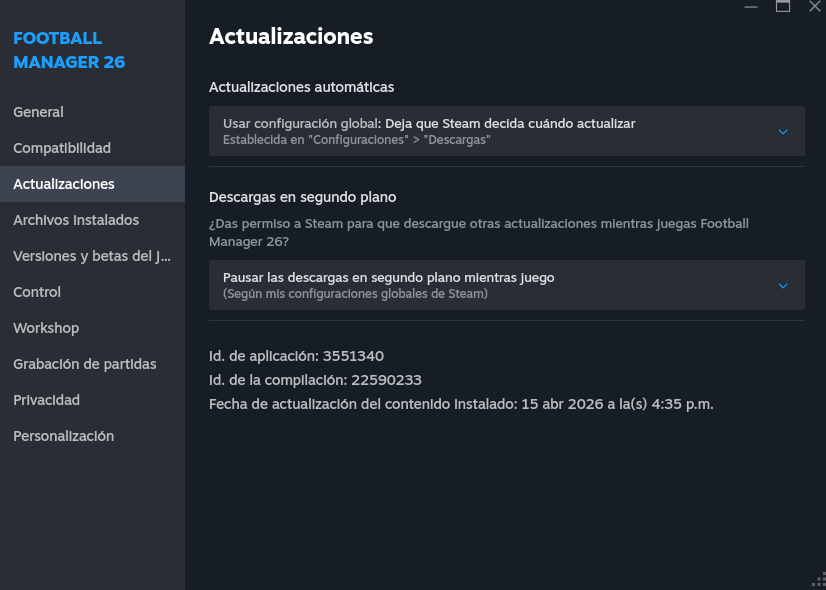
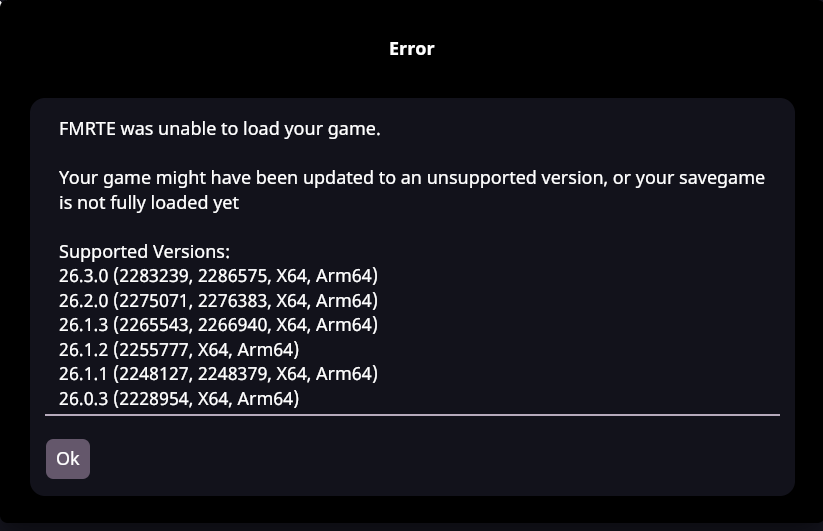
    FMRTE 26.3.0 (build 38) - RELEASED Download: FMRTE Auto-update or https://www.fmrte.com/download/fmrte26-linux Fixed Some issues loading the game

  • BraCa
    BraCa

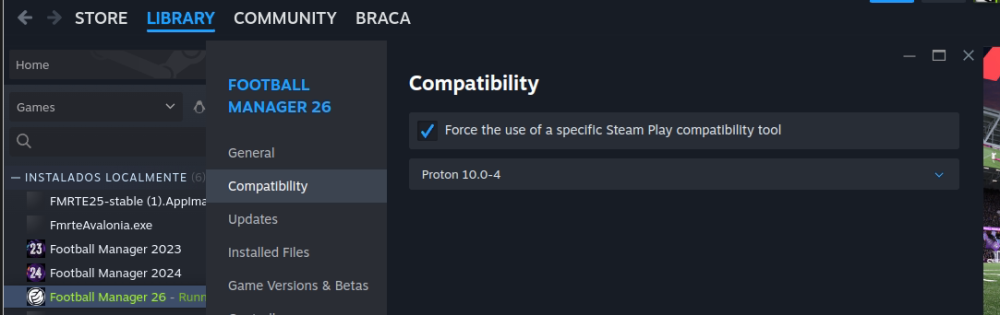
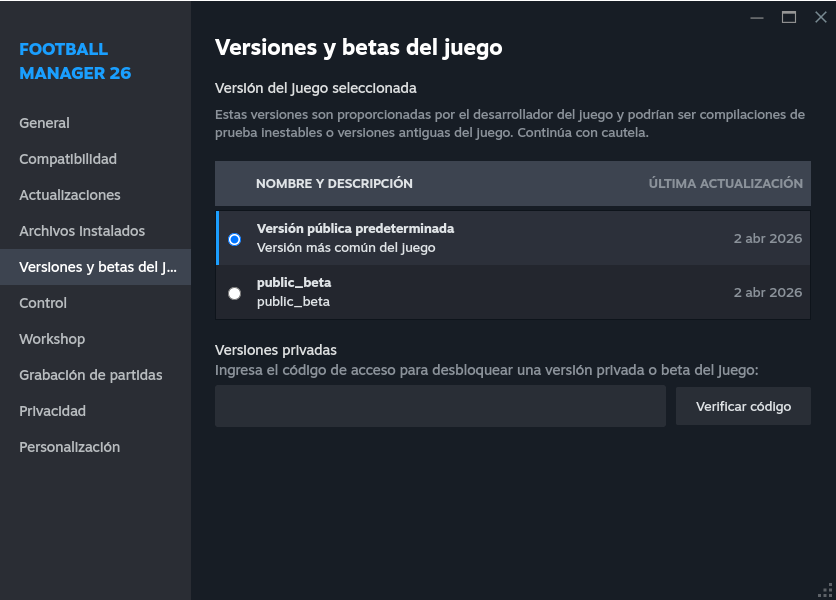
    I've found the issue, will try to release an update soon. In the meantime, changing the compatability type to Proto 10, or just untick the "Force..." should do the trick

  • culturedleftfoot
    culturedleftfoot

    Thank you for confirming this the developer will release a new Build if one is needed to address this as soon as he can thanks for your patience cheers
Posted Images

Featured Replies

Join the conversation

You can post now and register later. If you have an account, sign in now to post with your account.
Note: Your post will require moderator approval before it will be visible.

Guest
Reply to this topic...

Account

Navigation

Search

Search

Configure browser push notifications

Chrome (Android)
  1. Tap the lock icon next to the address bar.
  2. Tap Permissions → Notifications.
  3. Adjust your preference.
Chrome (Desktop)
  1. Click the padlock icon in the address bar.
  2. Select Site settings.
  3. Find Notifications and adjust your preference.